

Buying a webcam for Windows Hello? Check more than 4K
Check the exact webcam model, infrared support and Windows security requirements before buying for facial sign-in. A 4K label is not enough.

Maintained by FindsRadar Editorial Team
Before you buy
A webcam can produce a good video-call picture and still be unable to sign you into Windows. If facial sign-in is the reason for your purchase, check the exact camera model and your PC's security configuration before comparing resolution or price.
This guide uses Microsoft and Logitech documentation. It is a compatibility checklist, not a webcam image-quality test or a promise that a particular retailer's unit will work on every PC.
Start with the job you need done
Windows Hello offers face, fingerprint and PIN sign-in. Facial recognition requires a Hello-compatible camera; Microsoft describes using a supported built-in or external infrared camera. A high-resolution video specification alone does not establish that capability.
If your current webcam handles calls well and entering your existing PIN is acceptable, you may not need another device. Check whether the laptop already has a supported built-in face camera or fingerprint reader before buying a duplicate accessory.
Write two separate requirements: “works for calls” and “works for Windows Hello.” A product needs to meet only the first if your goal is simply better meeting video.
Read the full model name, not just the product family
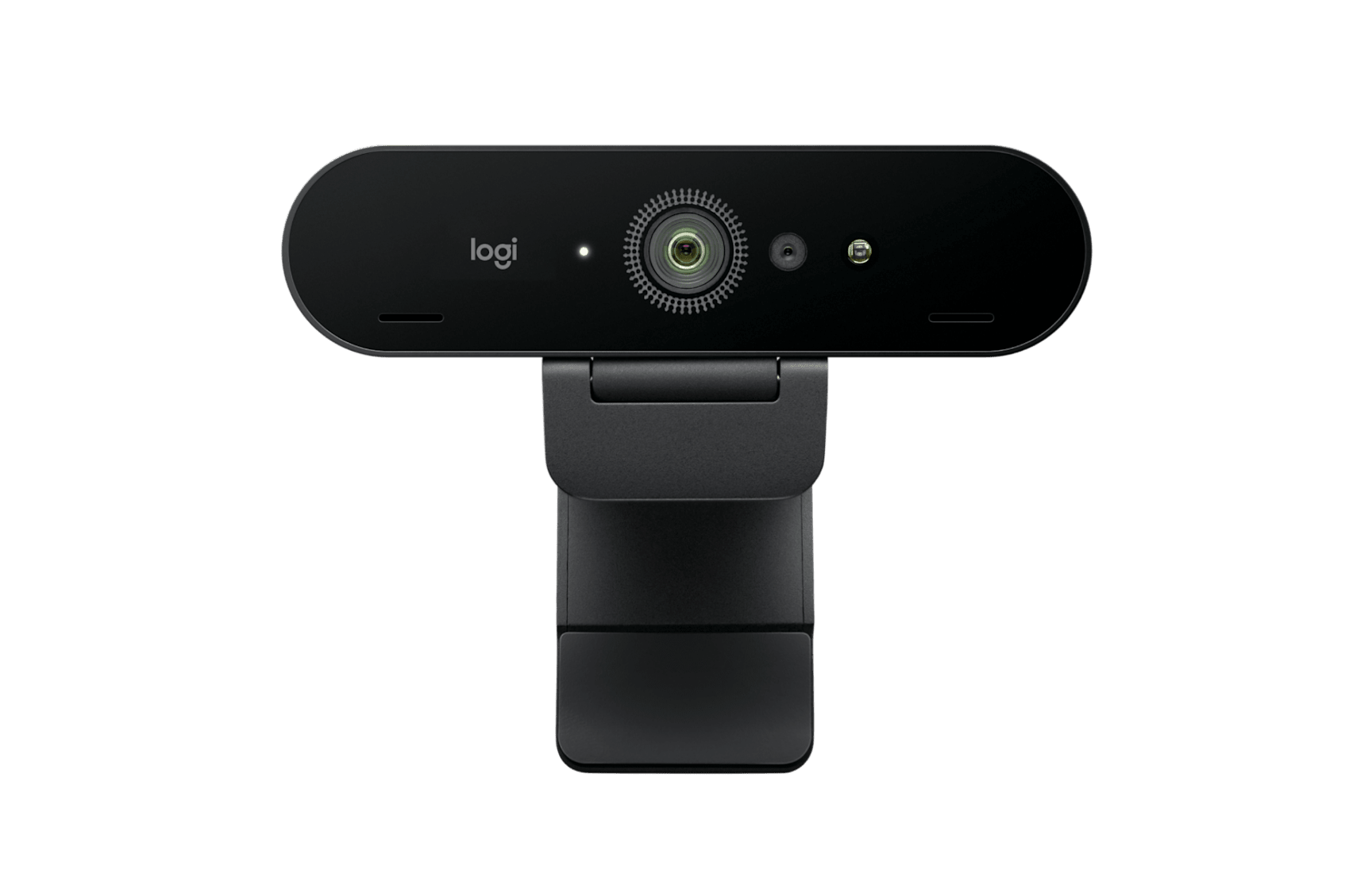
Logitech's own comparison provides a useful example: MX Brio does not support Windows Hello, while Brio 4K does. Similar branding does not make the models interchangeable.
The Brio/Brio 4K specification page identifies integrated optical and infrared sensors and lists component model V-U0040. Use that kind of exact manufacturer information to check a listing, rather than treating the word “Brio” as enough.
These are specification examples, not a recommendation or a verified offer. Do not transfer the claim to another Brio variant, a bundle with unclear contents, or a listing whose photographs and selected option disagree.
Check Enhanced Sign-in Security before checkout
On your PC, inspect Settings → Accounts → Sign-in options. Note the available sign-in methods and any Enhanced Sign-in Security information. Do not change security settings merely to make a shopping choice easier.
Enhanced Sign-in Security, or ESS, adds hardware and software protection to biometric sign-in. Microsoft's current guidance says non-ESS peripherals cannot be used for sign-in while ESS is enabled, although they can still work in applications such as Teams.
Microsoft currently states that ESS is not supported for external camera modules. A “Windows Hello compatible” webcam can therefore be unsuitable for a setup where you intend to keep ESS enabled. Some external fingerprint readers are a different case; do not carry their compatibility claims over to cameras.
The same guidance warns that disabling ESS removes existing ESS enrollments and associated credentials, such as passkeys, which then need provisioning again. This is a security and account-setup decision, not an ordinary webcam troubleshooting step. Keep the current sign-in method until you understand the consequences. For a managed work computer, ask IT which peripherals are permitted.
Do not follow an old toggle screenshot blindly
Microsoft documents different labels for Windows 11 versions. Version 24H2 and newer use an Enhanced sign-in security control when relevant sensors are available. Version 23H2 uses a control labelled Sign in with an external camera or fingerprint reader, with different On/Off meaning. Read the wording for your version instead of copying a switch position from a video.
A missing control is not proof that the camera is broken. Microsoft's external-device guidance also describes hardware detection, organizational restrictions and a phased rollout. Check with the PC manufacturer or administrator before buying a second camera as a workaround.
Keep video-call privacy and sign-in checks separate
Windows app-camera permissions are not a reliable test of Hello eligibility. Microsoft notes that Windows Hello can use the camera to sign in even when the Camera access setting for apps is off. Desktop app permissions also differ from individual Microsoft Store app controls.
Check the failure you actually have: no picture in a meeting, no facial-recognition option, or a sign-in rejection. Those are different symptoms. Avoid enabling broad app permissions when the real issue is unsupported biometric hardware or your PC's sign-in policy.
Your pre-purchase worksheet
Keep these details together:
- Exact PC model and Windows version.
- Whether you want to retain ESS or must follow an organization's policy.
- Full webcam name, model identifier and explicit manufacturer Hello support.
- Required USB connection, cable and mounting fit for your desk.
- The selected seller's return terms and warranty support in your country.
Check local support and your next step
For an India listing, verify who handles local support. A US manufacturer page does not establish the seller, condition, package contents or Indian warranty of that offer. No current price, stock position or merchant is verified here.
If these checks leave a conflict unresolved, keep using the existing camera and sign-in method. Buying a more expensive webcam will not by itself remove a policy or security limitation.
Frequently asked questions
Does a 4K webcam automatically support Windows Hello? No. Check the exact manufacturer's Hello claim, not resolution or a broad family name.
Why can a webcam work in Teams but not sign me in? Video use and biometric sign-in have different requirements. ESS can block a non-ESS peripheral from sign-in while ordinary application use remains available.
Do I need a camera to use Windows Hello? No. Microsoft also provides PIN and supported fingerprint sign-in. A new face camera is optional.
Useful next reads
For the rest of a desk connection plan, read our USB-C hub and laptop dock checklist. If meeting sound is the problem, the Windows Bluetooth-call audio guide covers that separate issue.
Sources & image credits
Logitech
Image: Logitech / Official product image. Brio 4K, not MX Brio.
Related Stories & Reviews
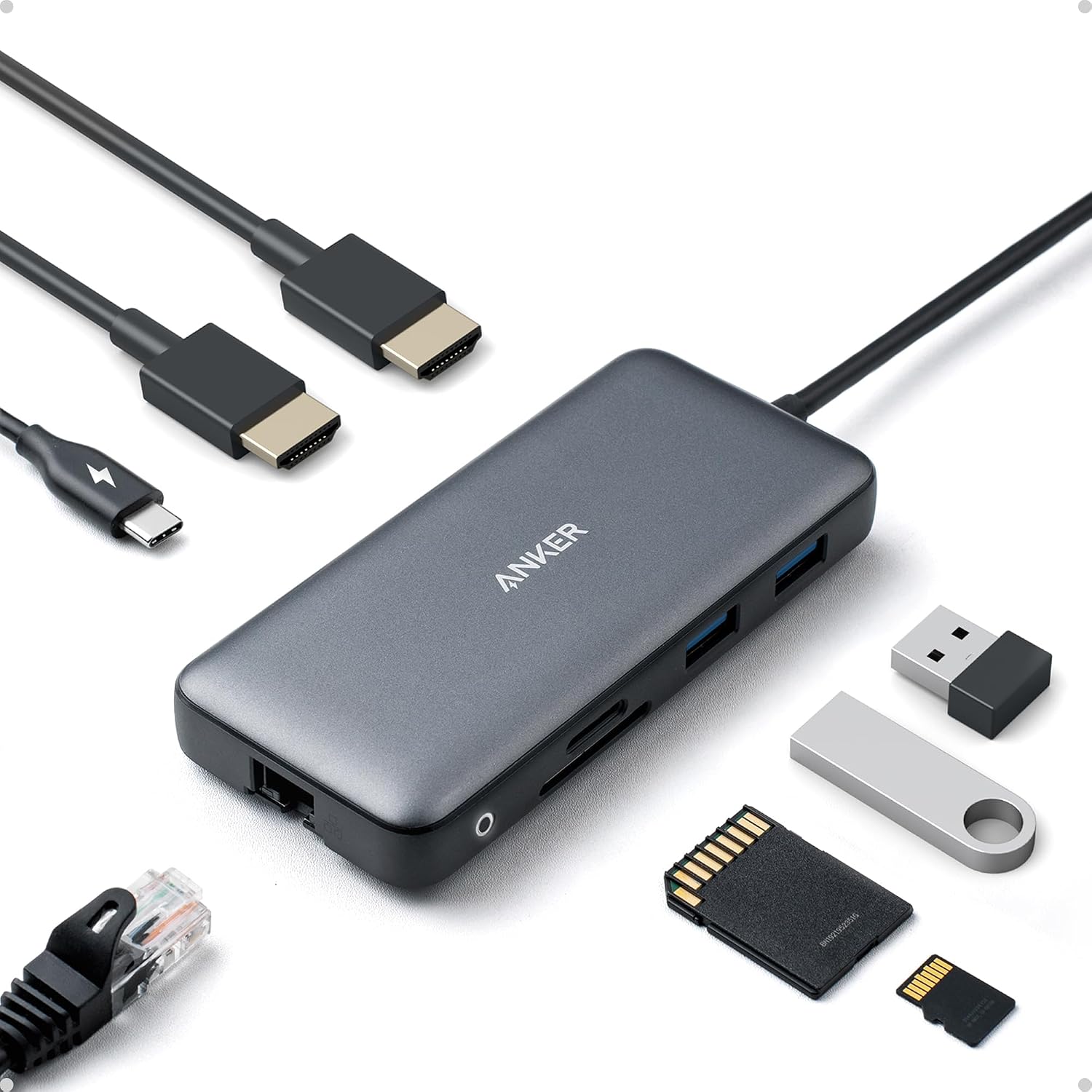
USB-C hub or dock? Start with your setup
Anker A8380 category example · Not Belkin INC027; pictured peripherals are not verified box contents.
6 min read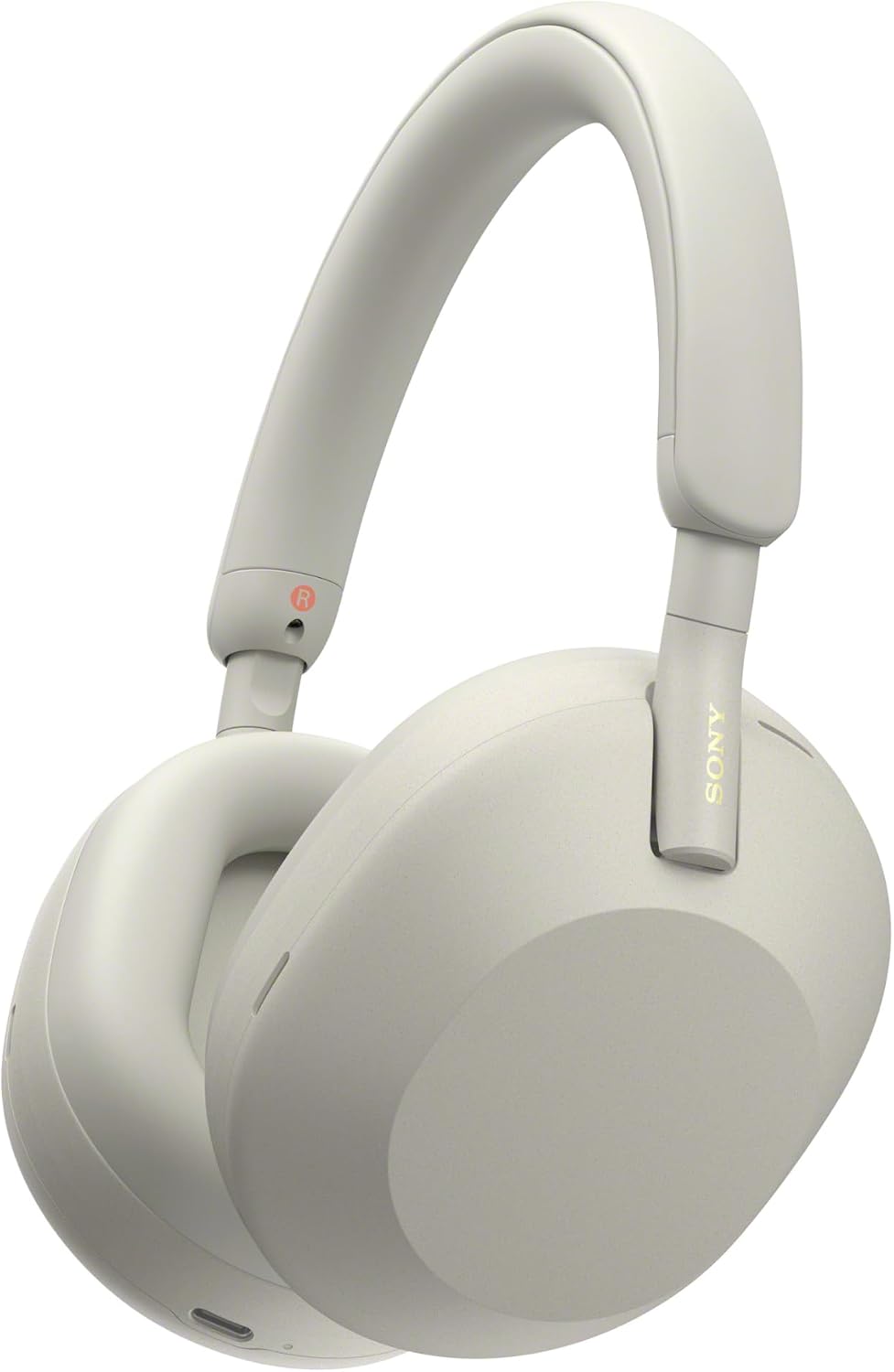
Bluetooth headphones sound worse in Windows calls? Check the audio mode first
Sony WH-1000XM5 documentation example · Not a call-quality test or proof of LE Audio compatibility.
3 min read