

USB-C hub or dock? Start with your setup
Choose for your screens, charging and ports—not the biggest “9-in-1” label.
Maintained by FindsRadar Editorial Team · Updated 2026-10-26 · Sources & corrections
The 30-second answer
For travel with one screen and a few accessories, start by checking a compact hub. For a permanent desk, compare powered docks. Before buying either, confirm your laptop’s display support, power delivered to the laptop and any required software.
Researched buying guidance, not a hands-on product comparison. Updated 26 October 2026. Revised guidance replaces earlier unsupported claims.
Which option fits?
Travel + one screen
- Start here
- A compact hub that supports your exact screen mode and accessories.
- Check
- Laptop video output, monitor resolution/refresh and any separate charger.
A desk you connect to every day
- Start here
- Compare a powered dock for the screens and peripherals you leave connected.
- Check
- Simultaneous display support, laptop charging output and included cables.
Two different desktops on a Mac
- Start here
- Use the exact Mac model and dock compatibility table to narrow the options.
- Check
- Two HDMI sockets alone do not prove two independent screens.Apple: external-display support · Belkin INC027 specifications (PDF)
A work-managed laptop
- Start here
- Confirm your IT rules before choosing a software-driven display connection.
- Check
- DisplayLink on macOS requires its app and permissions, including Screen Recording.DisplayLink: macOS setup and permissions
Copy this checklist before you shop
| What I need | Where to check | My setup |
|---|---|---|
| Laptop model, chip, OS and host port | Laptop maker’s port specifications | ____________ |
| Number of independent screens + resolution/refresh | Laptop display limits and dock simultaneous-output table | ____________ |
| Power delivered to the laptop | Dock power footnote and laptop charging requirements | ____________ |
| USB devices, Ethernet and other connections | Exact model’s port specifications | ____________ |
| Required software, power supply and host cable | Manual, box contents and workplace IT policy | ____________ |
Two display sockets are not the whole answer
Look for extended-display support for your operating system and the resolution/refresh rate when both outputs run together. Belkin’s INC027 is a useful example: its dual extended-display mode is for Windows, and output still depends on the host.Belkin INC027 specifications (PDF)
On a Mac, check the exact model first. Apple says the supported display count depends on the Mac and each screen’s resolution and refresh rate; a Thunderbolt label is not a substitute for that check.Apple: external-display support
Check the connection, not just the USB-C shape
Match the dock’s required host connection to your laptop’s port specification. Video, USB data and power are separate capabilities; check all three.VESA: display, data and power over USB-C (PDF)
DisplayLink can add another setup decision. Its macOS software needs permissions including Screen Recording; check with workplace IT before buying. Plugable also documents limitations with protected video content on macOS.DisplayLink: macOS setup and permissions · Plugable: DisplayLink limitations on macOS
Read the power delivered to the laptop
A charging headline may describe input, not what reaches your laptop. Belkin’s INC027 sheet gives one example: a 60W charger provides up to 45W pass-through while other functions are in use. That is a model-specific example, not a universal 15W deduction.Belkin INC027 specifications (PDF)
Compare the documented host output with your laptop’s requirements, then check whether the power adapter and suitable host cable are in the box.
Before and after ordering
Check the exact model suffix, seller, included adapter/cable and local support terms. Once it arrives, try your real setup: all screens at their intended settings, charging during normal work, sleep/wake, webcam and network. Follow the manufacturer’s operating instructions and the seller’s applicable support process.
Common questions
Will a Thunderbolt dock give every Mac two external desktops?
No. Check the exact Mac’s display support, screen resolutions and refresh rates, plus the dock compatibility table. Apple’s model-specific limits still matter. (source D1 in the sources panel)
Does every USB-C hub take 15W from the charger?
No universal deduction is established here. The cited Belkin model documents a particular pass-through example; other designs and connected loads require their own specifications. (source D2 in the sources panel)
Does a 9-in-1 label prove a hub will work with my setup?
No. Obtain the exact model’s manual and verify host video, extended-display support, charging output and operating-system requirements. The number counts functions, not a compatibility guarantee.
Sources and correction history
This guide replaces earlier universal charging-loss, thermal and Mac display claims with model-specific checks. It does not report hands-on measurements.
First published 2026-10-18. Updated 2026-10-26.
2026-10-26: Byline display updated to identify the team responsible for editorial maintenance. Original authorship remains under review; this does not establish who wrote the original article.
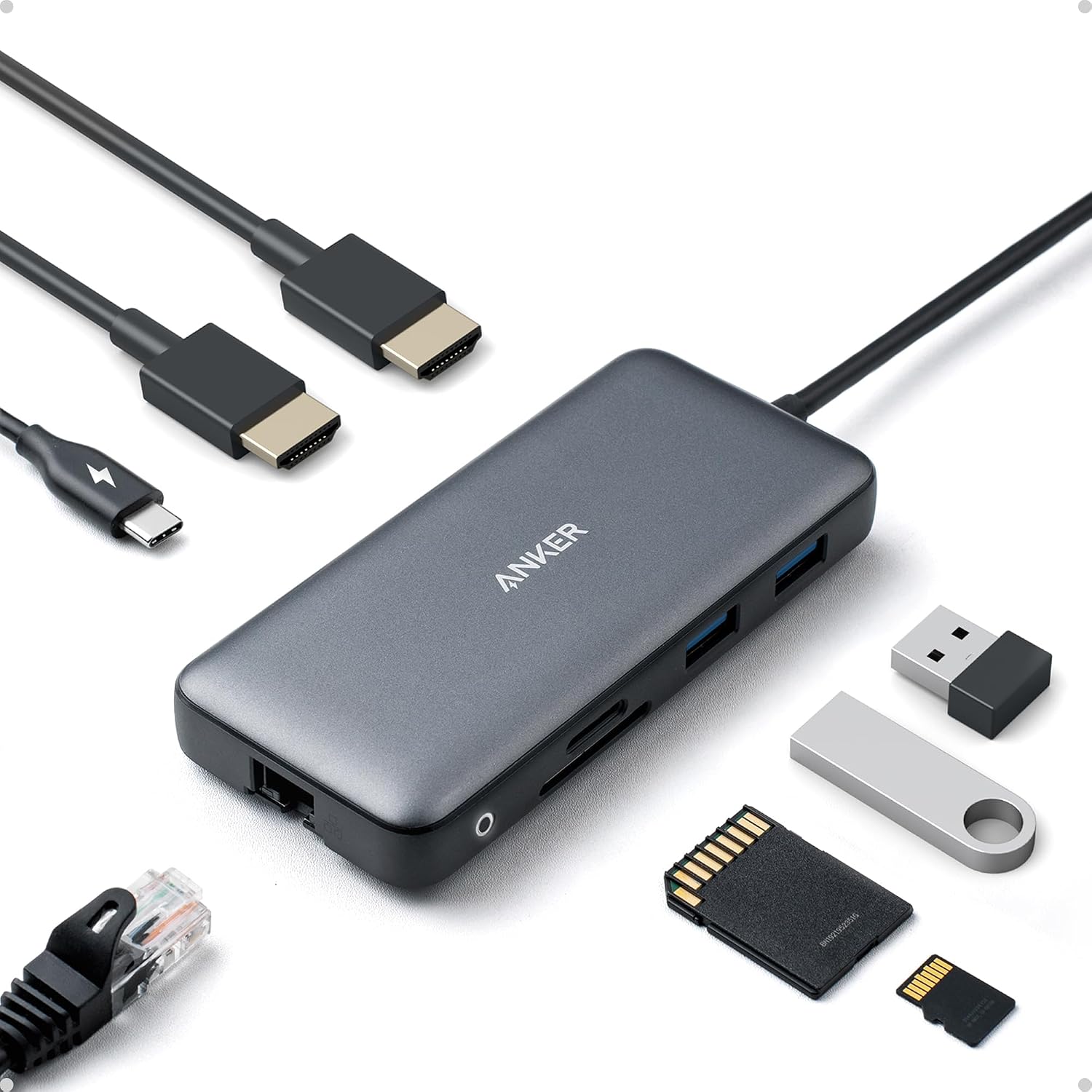
Anker A83800A1 USB-C hub, shown only as a category example—not the Belkin INC027 discussed in the guide. Cables, USB devices and cards are source display props, not verified package contents. This image is not a FindsRadar display, charging or compatibility test, or a current India offer.
Image: Source product image via Amazon.com / Amazon US image source — Anker A83800A1; A8380 family. Original source product imagery, unmodified and full frame. Owner-attested permission to reuse Amazon product images; not FindsRadar photography, testing or verification of a current offer.