

Two computers, one desk: USB switch or KVM?
Check video paths, USB peripherals, display modes and laptop charging before choosing a USB switch, KVM or existing monitor setup.

Maintained by FindsRadar Editorial Team
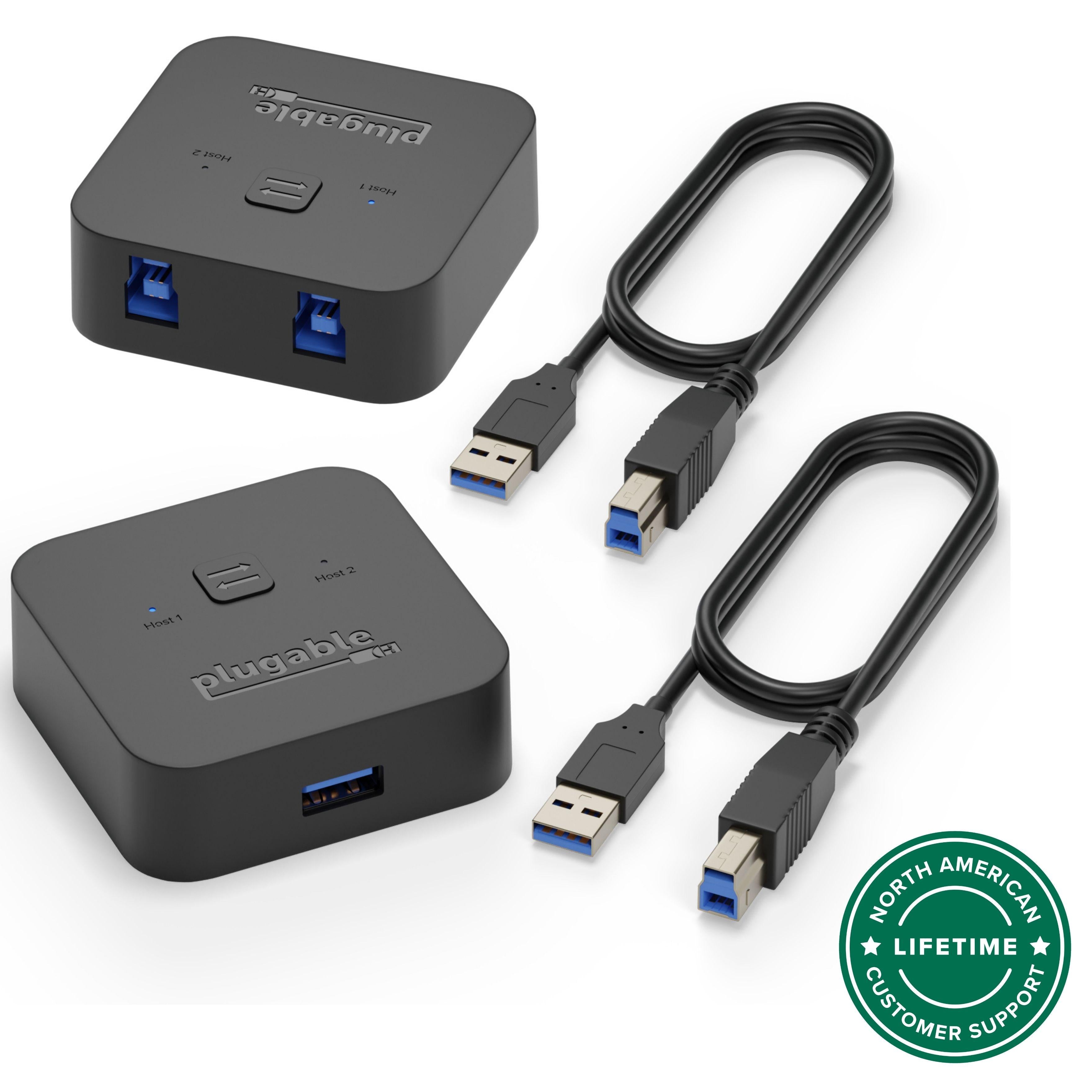
If a work laptop and a personal computer share your desk, start by listing what you want to move between them. Sharing a keyboard and mouse is a different job from switching a monitor, webcam and other accessories together. The useful purchase is the one that handles your actual connections without creating another cable problem.
On a managed work computer, follow your employer's peripheral and data-handling rules.
This is a documentation-based buying guide. FindsRadar has not measured switching delays, tested these devices or verified a current regional offer.
Start with the equipment already on your desk
Write down both computer models, each monitor's model, your usual display mode and the peripherals you want to share. Note how each peripheral connects: USB cable, USB wireless receiver or direct Bluetooth.
Check the monitor's manual first. Some models already include KVM functionality, as Dell documents for supported monitors. Multiple ports alone do not establish this feature. Dell's monitor KVM guide
If your existing monitor has suitable inputs and you already have the cables, manually selecting its input may be enough. You could move USB peripherals separately, or use their existing multi-device controls where supported. Try that routine before deciding that synchronized switching is worth buying.
Choose a USB switch when peripheral sharing is the main job
A USB sharing switch can connect a peripheral, or a supported hub of peripherals, to a selected computer. Each computer needs its own host connection. For example, Plugable's USB3-SWITCH2 serves one selected computer at a time; it does not make both computers use the same device simultaneously. Its power and hub requirements should be checked for the actual peripheral load. USB-C-only computers need separately purchased USB-C-to-A adapters. Switching uses the physical button, not a keyboard hotkey. Plugable's USB switch setup
For an ordinary keyboard-and-mouse arrangement, you can leave each computer's display cable connected separately and switch the monitor input yourself. That may suit a desk where changing computers is occasional.
Be careful with docks. Plugable explicitly says its cited USB-A sharing switches do not carry USB-C DisplayPort Alt Mode or Power Delivery. A connector adapter does not add those functions. Its guide separately allows certain USB-data-based DisplayLink configurations, so “USB switches can never share a display” would also be too broad. Check the exact switch, dock and display technology. Plugable's compatibility explanation
Choose a KVM when video and peripherals need to switch together
KVM means keyboard, video and mouse. Read the connection diagram for the specific model before ordering. A monitor picture does not prove that the computer also has a working USB connection to the shared keyboard.
Dell's integrated-KVM instructions illustrate the distinction: an HDMI or DisplayPort video path is paired with the appropriate USB upstream path, while peripherals connect downstream. A supported USB-C arrangement may combine functions, but the exact ports and mapping still matter. Dell's connection instructions
Draw the paths for both computers, not just the easier one. Confirm which cables are included and which you already own. If one machine needs an adapter or dock, verify that complete path rather than treating the adapter as invisible.
Write down resolution, refresh rate and monitor count
“4K KVM” is not a complete specification. Record how many displays you need and the resolution and refresh rate you intend to run on each.
For example, StarTech's P2AD122-KVM-SWITCH specification describes a single-display DisplayPort arrangement supporting 3840×2160 at 60Hz. That statement does not establish dual-monitor operation, a different high-refresh mode or every gaming feature. The universal power adapter is included, but host and display cables are not. Include the correct cables in your cost comparison.
Check the KVM, each computer output, adapters, cables and monitor together. If HDR, variable refresh rate or a particular high-refresh mode matters, look for explicit support rather than inferring it from the largest resolution number.
Check laptop charging separately
A USB-C socket does not tell you whether a KVM charges a laptop. Cable Matters' model 201085, for example, requires compatible video output from the host and explicitly does not charge the connected laptops. Its separate power input serves the switch and peripherals. Two extended displays on supported Windows or Linux laptops require MST support. On macOS, only one extended display is supported; a second external display mirrors it. This model does not support VRR, G-Sync or FreeSync. Its current requirements exclude HDMI/DisplayPort-only desktops, dedicated-GPU desktop setups and Chromebooks. A USB-C or Thunderbolt label alone does not establish compatibility. Cable Matters' model requirements
Keep those restrictions attached to that model. Other products may work differently. For your shortlist, note whether each laptop keeps its own charger, which host ports provide charging, the documented wattage per laptop, and whether a suitable power adapter is included or required. Do not buy a “one-cable desk” promise without checking what that cable actually carries.
Confirm peripheral support and your switching routine
Dell's described KVM setup handles compatible USB wireless receivers, but not direct Bluetooth pairing. Check how your keyboard connects before assuming the KVM's switching button changes which computer your wireless keyboard and mouse control. Dell's peripheral guidance
Check printers, webcams, audio devices and storage individually. Plugable notes that shared peripherals may need their own drivers on each computer even when the switch itself does not. Plugable's setup notes
Treat storage carefully: finish transfers and safely eject a shared drive before switching away from its current computer. Microsoft's safe-removal guidance explains the data-loss risk of disconnecting storage prematurely. This precaution does not establish that a particular switch supports your drive. Microsoft's safe-removal guidance
Also check what happens to the display when switching. The Cable Matters example explicitly warns about brief disconnects or rearrangement and lacks EDID emulation. Avoid universal promises of instant switching or perfect window placement. Test your actual sleep, wake and switching routine within the seller's applicable return conditions.
Buy against a completed checklist
Before choosing a verified local offer, confirm:
- Both computer models, ports and required display modes.
- The exact switch or KVM model and supported peripherals.
- All host, monitor and peripheral cables.
- Switch power, peripheral power and laptop charging.
- Software or driver requirements on each computer.
- Seller, condition, regional warranty, return terms and total cost.
No shopping link is included until those offer details are checked. Keep manufacturer documentation separate from any later affiliate offer.
If manual monitor selection and your existing peripherals already make the desk comfortable, keep that setup. If repeated switching is the problem, choose the compatible hardware that removes those particular steps.
Related reading: laptop docks versus USB-C hubs and USB-C charging versus data cables.
Sources & image credits
Plugable: USB sharing switch and supplied cables; not a video KVM. Two views of one unit, not a two-unit bundle. Manufacturer North American support badge is not a global warranty promise.
Image: Plugable / Plugable USB3-SWITCH2 manufacturer image. USB sharing switch and supplied cables; not a video KVM. Two views of one unit, not a two-unit bundle. Manufacturer North American support badge is not a global warranty promise. Manufacturer copyright; no separate image license claimed.
- Dell's monitor KVM guideChecked
- Plugable's USB switch setupChecked
- Plugable's compatibility explanationChecked
- StarTech's model specificationChecked
- Cable Matters' model requirementsChecked
- Microsoft's safe-removal guidanceChecked
Related Stories & Reviews
USB-C Charging vs Data Cables: Read More Than the Wattage
One cable example · Not measured charging, data or display capability.
6 min read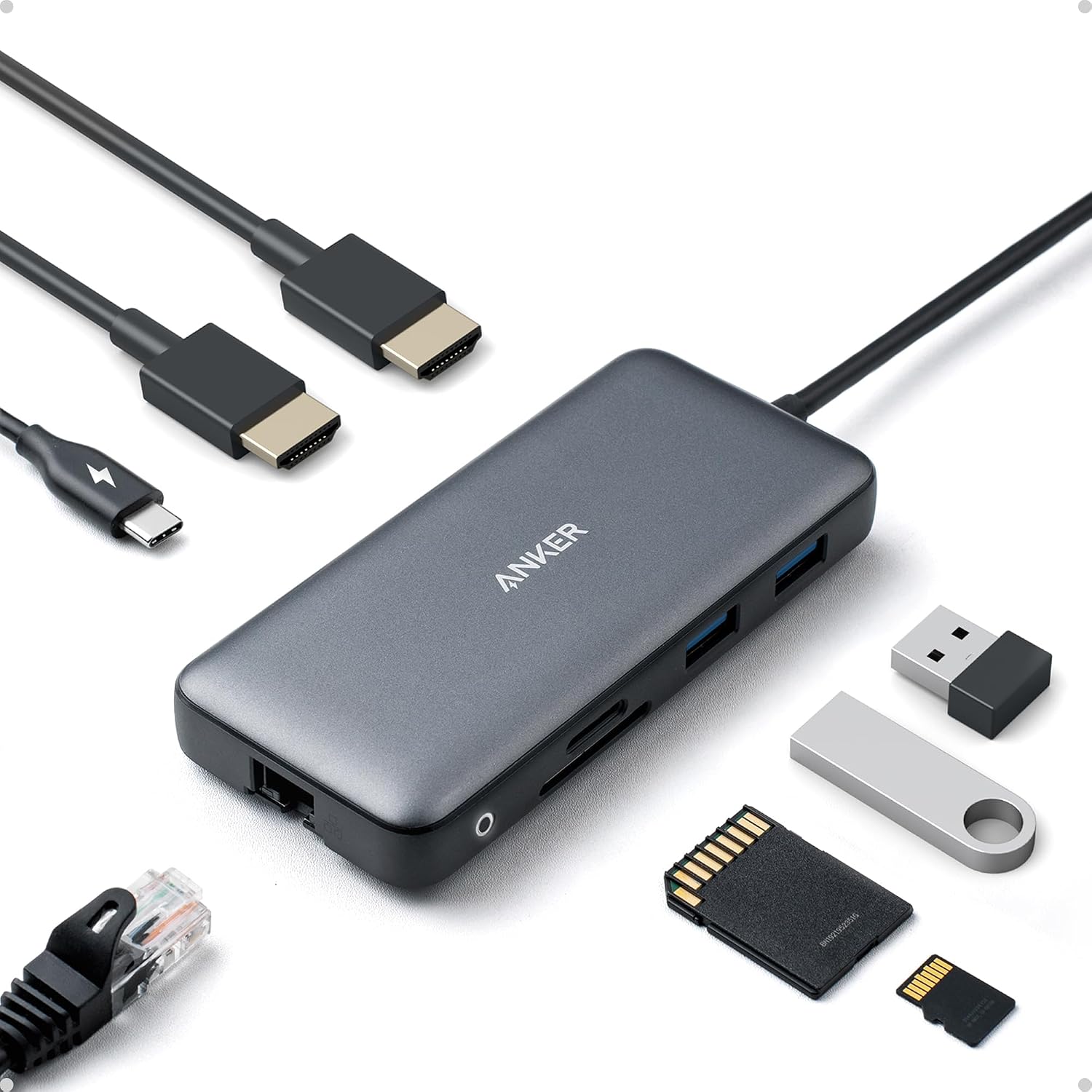
USB-C hub or dock? Start with your setup
Anker A8380 category example · Not Belkin INC027; pictured peripherals are not verified box contents.
6 min read