

Using your camera as a webcam? Check USB streaming before buying a capture card
Check USB streaming, clean HDMI, exact capture-card revisions, computer ports, power and audio before turning an existing camera into a webcam.

Maintained by FindsRadar Editorial Team
Before you buy
A camera you already own may be useful for video calls or a desk stream. Before buying an HDMI capture device, check how that exact camera can send a live picture to your computer. A supported USB workflow may do enough. If it does not, work through the HDMI connection, power and software requirements before shopping.
This is a documentation-based buying checklist, not a hands-on camera or capture-card review. No current regional offer, price or stock is verified here.
Start with the camera you have
Write down the camera's full model name, your computer's operating system and the application you intend to use. Look for a webcam, USB-streaming or live-streaming section in the camera maker's documentation.
For example, Canon documents USB use with compatible cameras and conferencing applications. Its US Webcam Utility Pro subscription adds features, while Canon directs customers elsewhere to their regional site for the no-cost version. Do not assume the same software plan, features or availability in every country. Check what your particular setup provides before paying for software or hardware.
Start with a practical target: an ordinary call, a recorded presentation or a live broadcast. List what is missing from your current setup. If the built-in webcam already meets that target, keeping it is a reasonable decision. A more elaborate camera chain is useful only if the extra result is worth setting up and maintaining.
Map the HDMI connection in the right direction
For an HDMI capture workflow, the connection runs from the camera's HDMI output to the capture device's HDMI input, then from the capture device to the computer over USB. Select that video source in the application. Sony describes this arrangement for supported Alpha and DSC cameras.
When comparing listings, look for an HDMI video-capture input. A product described only as a USB-to-HDMI display adapter is not evidence that it can receive the camera's picture. Likewise, check the function of a computer's HDMI port rather than assuming it is an input.
List the required pieces before ordering: the capture device, the cable with the correct camera-end connector, a suitable computer connection and the camera's power arrangement. A cheap headline price is less useful if the missing pieces remain unknown.
Check the camera's live output, not just its recording badge
Elgato's camera checklist asks whether the camera can produce an HDMI image without status overlays, run continuously and use external power while mounted. Check your camera manual for its specific behavior. A photo of an HDMI socket alone does not answer those questions.
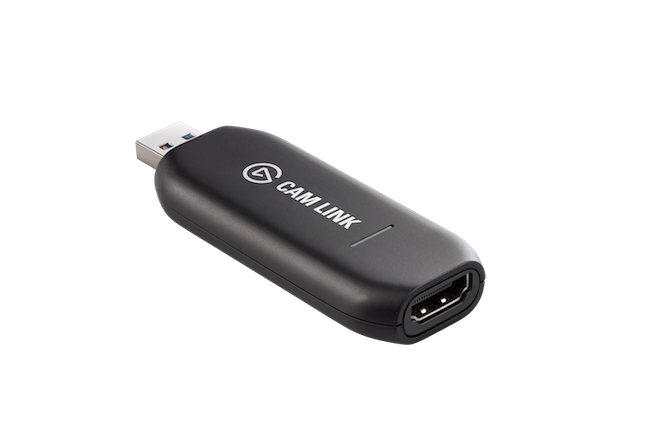
Look up the camera's live HDMI output format separately from its internal recording modes. Then compare that output with what the capture device accepts. For Cam Link 4K, Elgato specifies unencrypted HDMI and supported resolution/frame-rate combinations.
If the manual leaves a key detail unresolved, pause the purchase and ask the manufacturer about the exact camera model and intended workflow. Do not treat a general “4K camera” description as a completed compatibility check.
Read the capture device's revision and USB requirements
Cam Link 4K is a useful example of why the product name alone is insufficient. Elgato lists three revisions, with part numbers 20GAM9901, 20GAM9902 and 20GAM9903. Its requirements include USB 3.x, with host requirements that depend on revision. Match the actual item to the current documentation for your computer.
The technical sheet lists 4K at 30 fps and reserves 4K at 60 fps for compatible cameras with the latest Cam Link 4K model. Avoid both shortcuts: promising 4K60 from every listing, or assuming every version stops at 4K30. Confirm the seller's exact revision and the whole camera-to-application combination before choosing it for a particular format.
A connector that fits is only the starting point. Check any adapter, cable or hub in the USB path against the capture device's requirements. Buying a faster-sounding accessory without finding the actual mismatch is an avoidable expense.
Plan for a full session, including sound
Sony warns that continuous streaming can heat a camera enough to trigger automatic shutdown. Follow the camera maker's operating and power guidance. Do not defeat protective behavior just to keep a call running. Sony also advises choosing the correct audio device when using an external microphone.
Before an important session, make a short recording in your intended application and check both picture and sound. Then rehearse for the duration you actually need, using the intended power and connection setup. Keep a straightforward fallback, such as the computer's webcam, available.
Buy only after the checklist is complete
Compare a verified local offer only when you can name:
- The camera model and supported live-output mode.
- The capture device's exact revision and required computer connection.
- The intended application and audio source.
- Necessary cables and a manufacturer-supported power option.
- The seller, regional warranty, return terms and total cost.
Check local support and your next step
No shopping link is included until those offer details are checked. Manufacturer documentation is linked as source material, not as a verified local deal.
If supported USB streaming already meets your needs, keep using it. If HDMI capture solves a specific limitation, buy the compatible chain rather than the biggest resolution printed in a listing.
Related reading: USB-C charging versus data cables and choosing between a laptop dock and a USB-C hub.
Sources & image credits
Elgato
Image: Elgato / Official product image. Revision is not established by image. Do not imply revision 3.
Related Stories & Reviews
USB-C Charging vs Data Cables: Read More Than the Wattage
One cable example · Not measured charging, data or display capability.
6 min read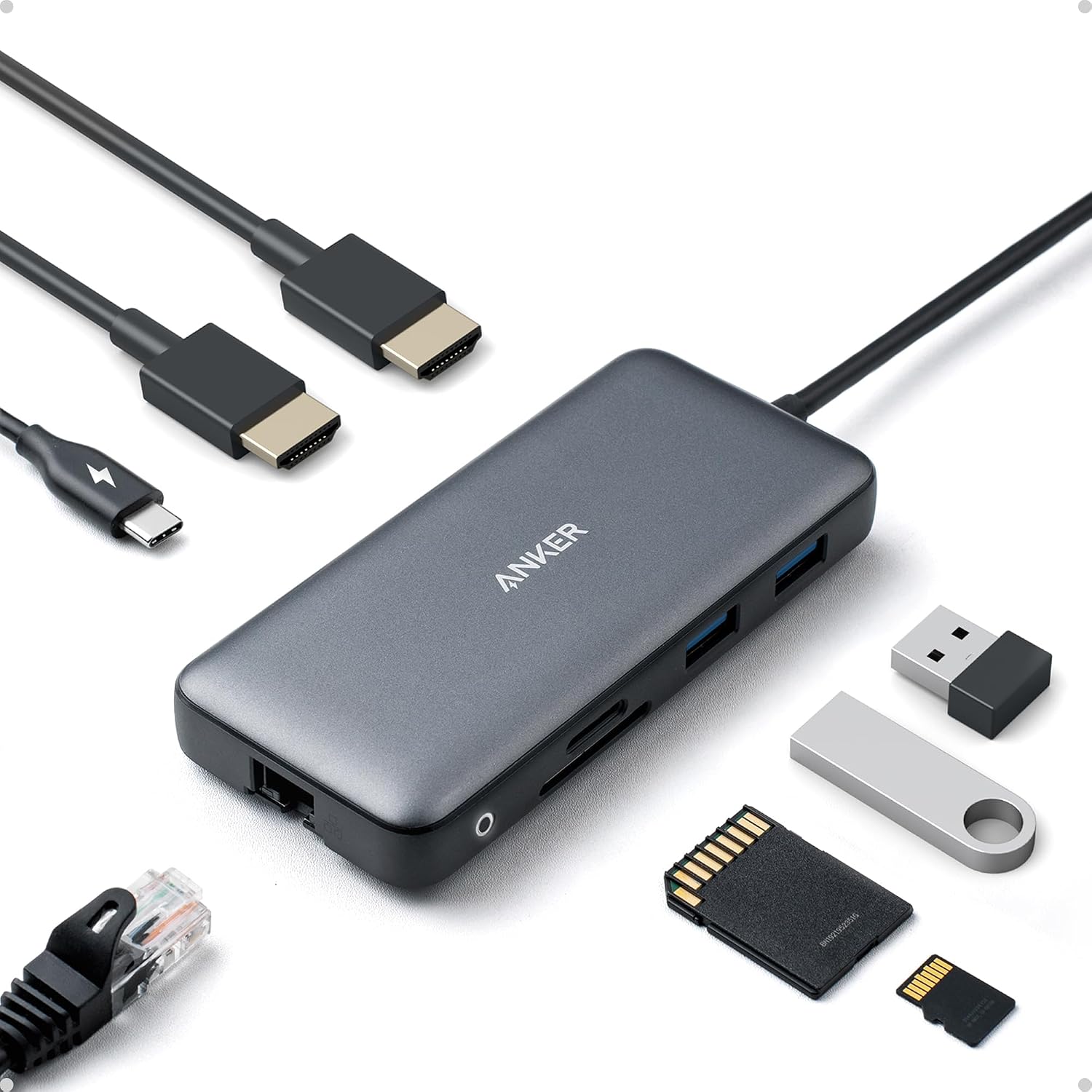
USB-C hub or dock? Start with your setup
Anker A8380 category example · Not Belkin INC027; pictured peripherals are not verified box contents.
6 min read