Buying an SSD enclosure? Match SATA/NVMe, size and connection first
A practical compatibility checklist for turning a spare bare SSD into external storage, with checks to make before buying or disturbing existing files.

Maintained by FindsRadar Editorial Team
A spare SSD can be useful for carrying files or keeping an extra copy of them. The enclosure is the part that turns that bare drive into something you can connect externally. Before choosing a case, identify the SSD you already own and the computer you will actually use it with.
The useful purchase is the one that solves that pairing. A faster label, a metal shell or a familiar connector does not answer every compatibility question.
If your existing external drive already has enough space and works well, keep using it. There is no need to dismantle a working setup simply because you have seen a newer enclosure. If you do have a spare SSD, start with its model number rather than a shopping category.
Identify the drive before the case
Look up the full SSD model on its manufacturer's support page. Record its interface and physical format. The main shopping paths are:
- 2.5-inch SATA SSD: choose an enclosure explicitly made for that format and check its supported drive thickness.
- M.2 SATA SSD: choose an enclosure that explicitly supports M.2 SATA.
- M.2 PCIe NVMe SSD: choose an enclosure that explicitly supports NVMe, then check the remaining dimensions and restrictions.
M.2 describes a physical format that can use different interfaces. A matching notch or a drive that slides into the socket is not enough to establish compatibility. Do not turn “B+M-key” or “M-key” into a universal protocol shortcut. Also, mSATA and M.2 are different formats.
For M.2 drives, the number describes the size: 2280 means 22 mm wide and 80 mm long. Check that the case supports your exact length, whether that is 2230, 2242, 2260, 2280 or 22110. Kingston's SSD FAQ explains the formats and keying.
Read the enclosure's exclusions
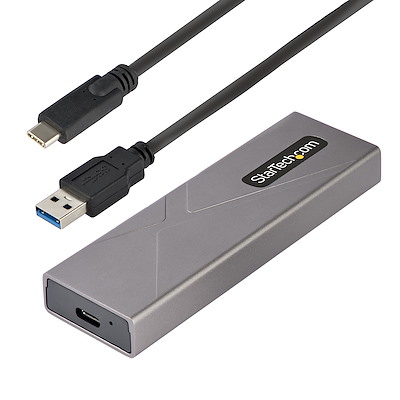
A dual-protocol case still needs checking. StarTech's M2-USB-C-NVME-SATA supports M.2 NVMe M-key and M.2 SATA B+M-key drives, but excludes 22110. This is an example of the checks to make, not a tested recommendation. See the manufacturer's enclosure datasheet.
The same sheet lists 2230, 2242, 2260 and 2280 lengths and both USB-C-to-C and USB-C-to-A host cables. The enclosure is not an SSD: include a compatible drive in your budget if you do not already own one.
Before ordering, confirm heatsink clearance, support for double-sided SSDs and supported capacity. If specifications are silent, ask the manufacturer with the full SSD model number. Pause the purchase until it confirms compatibility.
Match the connection you can actually use
Read the specifications for the computer port, any intervening hub or dock, the enclosure and its cable. Buy for that complete connection, rather than the highest number printed on one component.
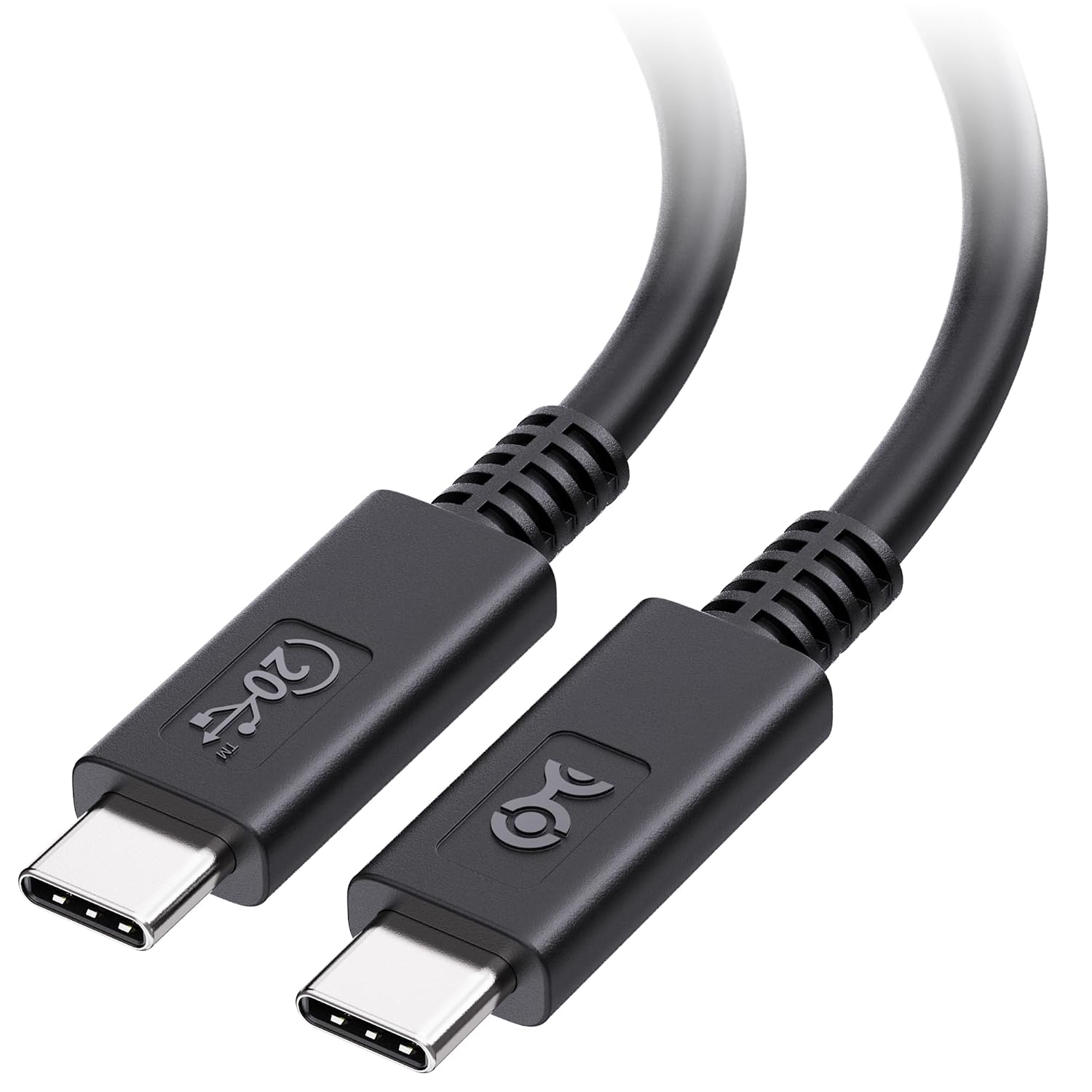
USB-C alone does not establish cable performance. Plugable distinguishes USB-C charging cables limited to USB 2.0's 480 Mbps data rate from higher-bandwidth data cables. Similar-looking cables can have different capabilities, so check an explicit data-rate specification rather than relying on charging wattage.
For a 10 Gbps enclosure, verify the matching capability all the way to the computer. A higher-rated cable cannot upgrade a slower host connection. Likewise, advertised interface bandwidth is not a promise that your files will copy at that rate. Plugable's cable guide explains the relevant differences.
For occasional file transfers, prioritize a confirmed match over paying for speed you have not established that your setup can use. Keep the supplied cable identified so it does not disappear into a drawer of lookalikes.
Check power and cooling details
Use the chosen model's requirements. The StarTech example is USB-powered at 5 V DC, includes a thermal pad and specifies a 0–40°C operating range. These details are model-specific. Verify the intended host port or hub can satisfy the enclosure's power requirements; do not assume every port-and-drive pairing will work. Follow the installation guide for thermal-pad placement and clearances rather than adding pads or forcing a heatsink into the case. Check its power, environmental and package specifications.
Protect the files before repurposing
Decide whether this is a storage project or a file-recovery job. If the SSD contains anything you need, preserve that data before experimenting. Where the original setup still works, make a separate backup and open a few important files from that backup before changing hardware. Moving the only copy into a new case does not create another copy.
Do not initialize, format, erase or delete partitions just because the newly connected drive prompts you to. Microsoft's initialization instructions are for a new disk with no existing data, and its warning says initialization erases data. If a used SSD is not readable, stop and investigate rather than treating a setup prompt as permission to start fresh. Read Microsoft's initialization warning.
Check encryption access beforehand too. For a BitLocker-protected drive, verify that its recovery key is backed up and accessible somewhere other than the drive you are moving. Microsoft notes that external or data drives can require recovery access, and that its support team cannot recreate a lost key. Keep recovery information private. Microsoft explains recovery-key backup.
Finish with a safe disconnect
When you finish using the drive, complete transfers and use the operating system's eject or safe-removal process before unplugging it. In Windows, select the correct device through Safely Remove Hardware and Eject Media, then wait for the safe-to-remove notification. Microsoft's safe-removal instructions explain the process.
Your final decision should be easy to explain: this case fits this SSD, works with this connection and serves a job you actually need. If any part remains unknown, resolve it before buying. This guide is based on manufacturer and operating-system documentation, not hands-on testing or measured performance.
Related reading: USB-C charging versus data cables. Current regional offers, prices and stock have not been verified; the manufacturer datasheet is a compatibility reference, not a shopping recommendation.
Sources & image credits
StarTech.com: Manufacturer image of exact enclosure and host cables; SSD not shown. Extracted losslessly from official PDF page 1.
Image: StarTech.com / M2-USB-C-NVME-SATA manufacturer image. Manufacturer image of exact enclosure and host cables; SSD not shown. Extracted losslessly from official PDF page 1. Manufacturer copyright; no separate image license claimed.
- Kingston's SSD FAQ explains the formats and keying.Checked
- See the manufacturer's enclosure datasheet.Checked
- Plugable's cable guide explains the relevant differences.Checked
- Read Microsoft's initialization warning.Checked
- Microsoft explains recovery-key backup.Checked
- Microsoft's safe-removal instructions explain the process.Checked