Buying a printer for iPhone, Mac and Windows? Check the connection first
Check AirPrint, USB-only listings, Wi-Fi Direct and Windows support before buying a printer for your actual devices and tasks.

Maintained by FindsRadar Editorial Team
A printer can be a good fit for one device and awkward for another. Before comparing discounts, write down where your documents live and how you want to print them. An iPhone, a Mac connected by USB and a Windows laptop do not necessarily use the same setup.
This guide explains the checks to make from manufacturer and operating-system documentation. It is not a hands-on printer review, and no current seller, price or stock is verified.
Start with the jobs you actually need
Make a short list: occasional forms, frequent documents, photographs, or scanning several pages. Note every phone or computer that needs access and its operating-system version. For a work-managed device or network, check the applicable rules before connecting equipment or installing software.
If your current printer already handles those jobs, try its documented connection method before replacing it. If you print only occasionally, compare ownership with a trusted print service you can use appropriately for the documents involved. Avoid sending confidential files to an unverified service simply to save a small amount.
Verify the exact model's AirPrint path
For iPhone or iPad printing, look up the precise printer model in Apple's AirPrint information and the manufacturer's documentation. Keep the model suffix in your notes rather than relying on a broad product-family name.
Apple's printer search includes an important distinction: models categorized as USB-only support driverless printing or scanning from a Mac over USB. That listing is not confirmation of an iPhone-to-USB-printer workflow. If a model is absent, Apple directs readers to its manufacturer. Apple's AirPrint overview
This is why a retailer's “works with Apple” description needs another check. Confirm the device, connection and function you mean, not just the brand of computer or phone.
Check the network and the application
Apple documents AirPrint over Wi-Fi or a wired network. For the ordinary shared-network setup, make sure the phone and printer can use the same local network, with the printer connected as its manufacturer specifies. A printer's Ethernet connection can be relevant; it does not have to be a phone-to-printer USB cable.
Check the app too. Apple notes that not every iPhone or iPad app supports printing. Look for its Print option or help instructions before assuming a new printer will add that function. Apple's iPhone and iPad printing guide
For a managed or guest network, ask its administrator whether the intended printing arrangement is supported. Do not weaken network security to make a printer appear. If you already own the printer, a missing discovery result is a reason to check the documented setup before treating replacement as the solution.
Treat Wi-Fi Direct as a separate workflow
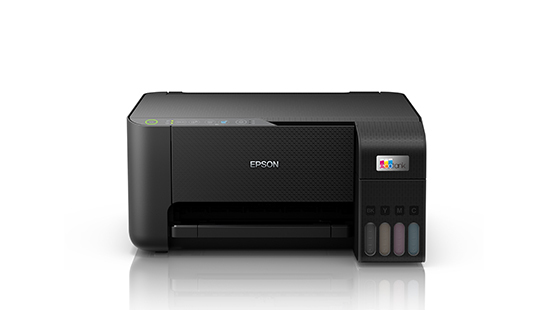
Some printers offer a direct wireless connection without a router. Epson's L3250-series guide, for example, describes connecting a device to the printer's own Wi-Fi Direct network. It also specifies network software for printing from a computer. Epson's model-specific Wi-Fi Direct instructions
That example is not an AirPrint recommendation. Before buying for a router-free setup, check the exact printer's instructions for your phone or computer, required app and available functions. Do not assume that a Wi-Fi Direct badge answers all of those questions.
Consider whether you want to select a direct connection when needed or keep the printer available on your normal network. Choose a documented workflow you will use.
Check Windows support for the computer you own
For Windows, find the exact printer model on its manufacturer's support page and check your Windows version. Microsoft recommends Windows Update for printer drivers, with manufacturer-specific downloads among the alternatives. A general Windows logo on a listing is less useful than support information for your configuration. Microsoft's printer-driver guidance
Processor architecture can matter during setup. Microsoft documents cases where a manufacturer's installer fails on an ARM-based PC and directs users to Windows' printer-installation guidance unless the manufacturer gives different instructions. Check System type under Settings, System, About rather than inferring architecture from marketing labels. Microsoft's ARM printer-installation guidance
A failed installer by itself does not settle whether the hardware is compatible. Equally, do not buy on the assumption that every advanced function will work through any installation route. Ask the printer manufacturer about the functions you need on that exact computer.
Check printing, scanning and running costs separately
For an all-in-one, ask separate questions about printing and scanning. If you need automatic two-sided printing, a document feeder or scanning to a particular app, find those features in the exact model's specifications. A successful single-page print is not your complete acceptance test.
Compare the cost of the routine you expect, not only the printer. Record the replacement ink or toner identifiers, local availability, paper requirements and any other listed consumables. Check what the box actually contains before buying extras.
If an offer includes an ink plan or other subscription, read its recurring charge, included allowance, cancellation terms and any printer-use conditions. Do not count a trial or introductory bundle as permanently free supplies. No specific plan is verified or recommended here.
Make the final choice against a short checklist
Before selecting a verified regional offer, confirm:
- Exact printer model and suffix.
- Every intended device, operating system and connection method.
- AirPrint support where required, including the listing category.
- Required apps or drivers and the features they provide.
- Cables, network access, consumables and any account or subscription requirements.
- Seller, condition, local warranty, returns and total cost.
Manufacturer links above are reference material, not verified shopping offers. If the compatibility answers remain unclear, ask before buying. If your existing printer still meets the requirement, keep using it.
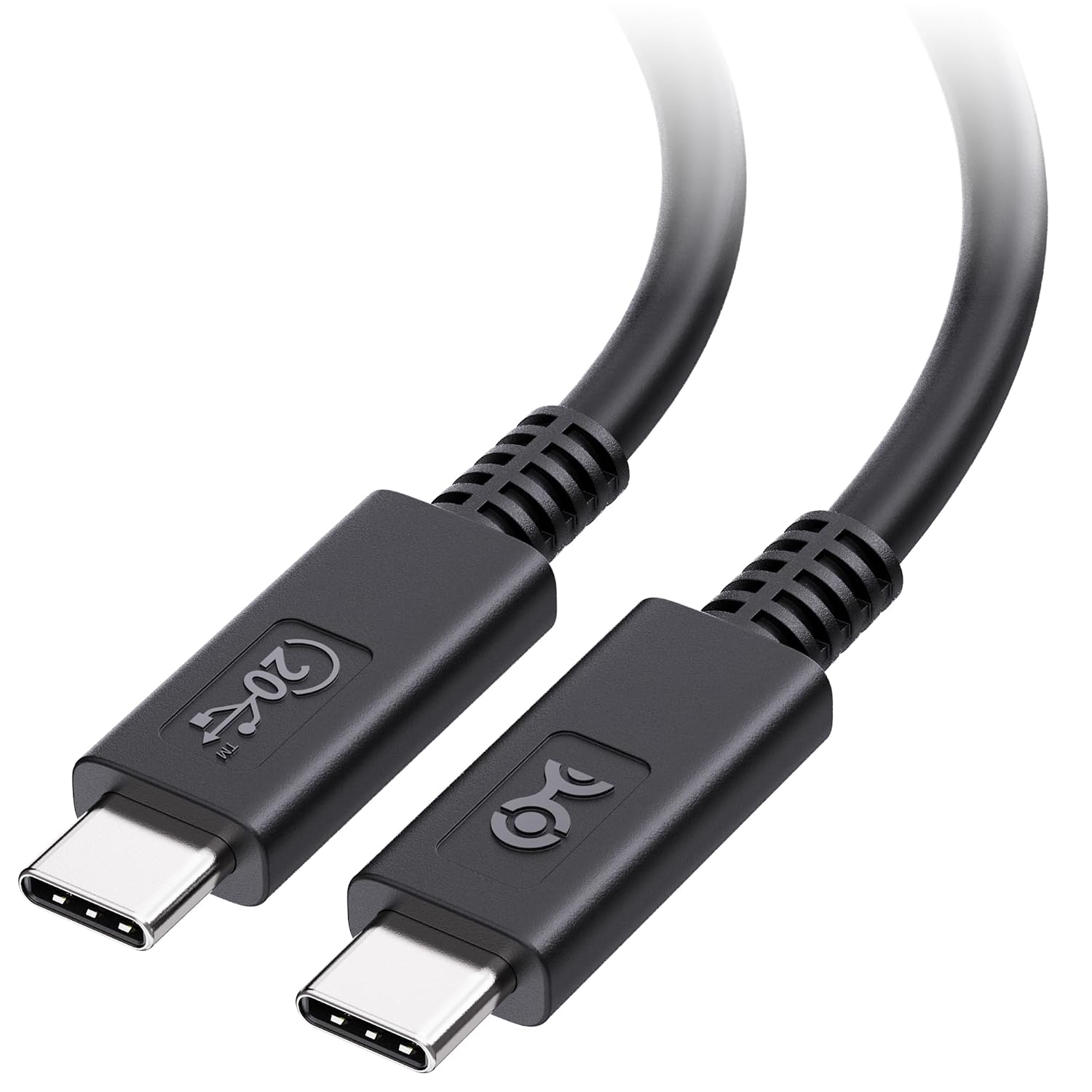
For a wired setup, our USB-C charging versus data cable guide can help you check a cable's role. It does not establish that a particular printer supports a USB connection from an iPhone.
Sources & image credits
Epson: Epson L3250 shown as a Wi-Fi Direct example, not an AirPrint recommendation.
Image: Epson / Epson L3250 India C11CJ67508 manufacturer image. Epson L3250 shown as a Wi-Fi Direct example, not an AirPrint recommendation. Manufacturer copyright; no separate image license claimed.