

Tapo camera recording in India: microSD, internet and cloud checks
Buying a Tapo camera? Separate live view, local recording and cloud features, then check the exact model, microSD card and recording schedule.
This guide uses TP-Link India support information. Shopping links follow your selected market; confirm the local model, hardware version and support documentation. No current price or stock is verified.

By FindsRadar Editorial Team
Start with what you need to save
Before buying a camera for an Indian home, decide whether you need occasional event clips, a continuous timeline, or access to saved footage while away. Those are different requirements. A working live view is not a sufficient check that the camera is saving the history you want.
This guide uses TP-Link’s India support documentation. It is not a test of an installed camera, a security-performance assessment or a claim that every Tapo model has identical features.
1. Separate recording from live view
TP-Link’s continuous-recording instructions require a supported camera, local storage and an enabled recording schedule. The schedule can select continuous recording, detection-triggered recording or no recording. Do not assume a battery-powered model supports a continuous timeline; confirm that feature in the exact model’s current documentation. TP-Link: continuous recording [C1]
Our buying rule: choose the recording requirement first, then shortlist the camera. A larger memory card cannot create a recording mode the camera does not support.
| What you want | What to confirm |
|---|---|
| See what is happening now | Live view works on the network and device you intend to use. |
| Review activity later | Local or cloud recording is actually configured, not merely live view. |
| Review a period with no detected event | The model supports continuous recording and the required hours are scheduled. |
| Keep a particular clip | You can export it and open the saved copy before routine recordings are overwritten. |
2. Buy the card for the exact camera, not just the brand
TP-Link recommends endurance-class microSD cards intended for repeated recording. It also says maximum capacity depends on the camera model and hardware version. Read those limits before ordering a card; a capacity supported elsewhere in the Tapo range is not automatically supported by your unit. TP-Link: microSD compatibility [C2]
For an India purchase, record the model and hardware version from the listing, then compare them with the India support page or manual. If a seller cannot clarify the version, resolve that before buying the camera-and-card bundle. Keep the invoice and check local service and seller replacement terms rather than assuming an imported unit has the same coverage.
Do not promise yourself a fixed number of days from capacity alone. TP-Link notes that recording duration varies with settings and scene conditions. Decide how far back you need to look, then check the actual retention on your own installation. TP-Link: microSD guidance [C2]
3. “No internet” is not the same as “no power”
TP-Link says initial setup requires internet access. After configuration, local SD recording can continue if the camera loses its router connection. With phone and camera on the same wireless network, local viewing and playback can work without internet, but notifications and cloud services do not. None of this means a mains-powered camera records without electricity. TP-Link: setup and connectivity FAQ [C3]
Our practical takeaway is to write down which interruption you are planning for: broadband failure, router failure or loss of camera power. Do not treat one successful offline test as proof that all three are covered. If uninterrupted recording is essential, ask the manufacturer about your exact equipment and power arrangement rather than improvising a backup supply.
4. Check setup before you leave it running
Use the manufacturer's instructions for your app and model. The following is a suggested acceptance checklist, not a report of testing by FindsRadar:
- Confirm local storage is recognised. Before formatting a previously used card, save any recordings you need: formatting removes them.
- Check Local Recording and the schedule for the hours you actually need. On supported models, find these under Device Settings → Storage & Recording.
- Return later and play a saved segment, including one without an event if you selected continuous recording. Do not stop at seeing a live picture.
- Export a non-sensitive sample and confirm you can open it. TP-Link’s export instructions specify the same Wi-Fi network when downloading SD-card recordings.
- Check whether loop recording is enabled. When it is, the oldest footage is overwritten as storage fills; export anything you need to retain.
The recording controls are documented in TP-Link’s setup guide [C1]; formatting, export and loop-recording behaviour are covered in its camera FAQ [C3]. Avoid placing a camera where it unnecessarily captures private areas or people who have not been informed.
Budget for the chosen recording path
Compare the camera, compatible storage and any subscription features you actually need. A cloud offer should be checked separately for the exact camera, India account, retention period and renewal terms. We have not verified a current plan price or subscription entitlement, so this guide does not call either option “free forever” or the cheapest choice.
Optional shopping links
Compare Tapo cameras and storage
As an Amazon Associate, FindsRadar earns from qualifying purchases.
Search results only—confirm the exact model, price and stock on Amazon.
Tapo indoor cameras
Confirm the exact model’s recording modes, hardware version and regional support.
Search Amazon IndiaEndurance microSD cards
Match capacity and card requirements to your camera’s model and hardware version.
Search Amazon IndiaSources & image credits
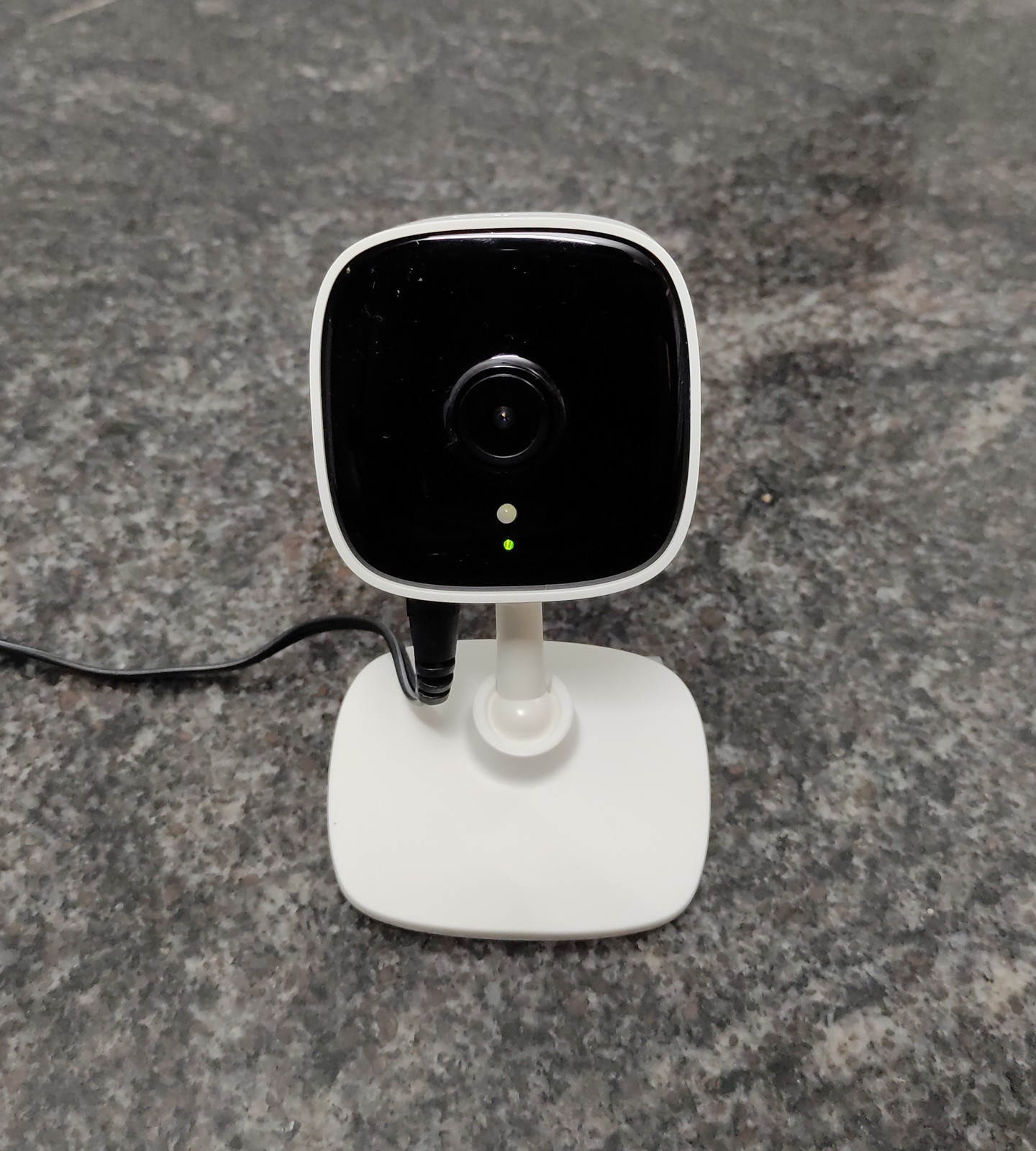
Tapo C100 shown as a camera example. Recording, storage and regional hardware features vary by model; check your exact version.
Image: Vis M / Wikimedia Commons · CC BY-SA 4.0. Resized and compressed; no crop or retouching.