

Phone stops charging at 80%? What to check on iPhone and Pixel
Separate a chosen charge limit from a scheduled finish or a protective pause before assuming your charger needs replacing.

By FindsRadar Editorial Team
Start with the message, not a shopping list
An 80% reading is a clue, not a diagnosis. Check the charging settings and any notification first. A deliberate cap, a later scheduled finish and a protective pause call for different next steps. This guide covers iPhone and Google Pixel, not every Android phone.
iPhone: a limit and a scheduled finish are different
On iPhone 15 and later, open Settings → Battery → Charging. The charge limit can be 80–100% in five-point steps. The phone may stop a few percentage points from your chosen limit, not precisely on it.
With a 100% limit, Optimized Battery Charging can delay progress beyond 80% until closer to your usual unplugging time. If its Lock Screen notification is present and you need a full charge sooner, press and hold it, then tap Charge Now.
On iPhone 14 and earlier, look under Settings → Battery → Battery Health & Charging for Optimized Battery Charging; this is not the newer selectable-limit control.
An occasional full charge despite a lower limit is expected: Apple uses it to maintain accurate charge estimates.
Pixel: identify which protection is active
On Pixel 6a and later, go to Settings → Battery → Battery health → Charging optimization. Enable optimization and select Limit to 80% for a cap; turn that option off when you need a full charge. Adaptive Charging instead schedules completion around your routine, with the expected finish time in its notification. It supports Pixel 4 and later, with model-dependent activation conditions.
A separate safeguard on Pixel 3 and later, including Fold, with Android 11 or later can limit charging to roughly 70–80% after hours of charging in high temperatures or several days continuously connected. A Protecting your battery notification identifies it. The safeguard disengages when those conditions end; address heat rather than searching for a missing manual-limit setting.
Google says a full charge is needed every tenth cycle for accurate capacity readings, even with the cap enabled. For that process, leave it connected at least 30 minutes after 100% appears. You do not need to deliberately drain it to zero.
A warm iPhone may pause for a different reason
Apple says software can limit charging above 80% when the battery is warm. Move the phone and charger to a cooler location; charging resumes as the temperature falls. Raising the selected limit does not solve a temperature-related pause.
Choose the next step that matches your phone
- If you chose a cap, decide whether you actually need more charge for the day.
- If charging is scheduled to finish later, use the relevant controls when you need it sooner.
- If a protection or temperature alert is present, resolve that condition rather than assuming a higher-wattage charger is the answer.
- If none fits, follow the manufacturer’s charging troubleshooting. The percentage alone does not establish a faulty cable, charger or battery.
How this guide was prepared
Based on Apple and Google support documentation checked on October 30, 2026. Settings can differ with software version. This is a documentation-based troubleshooting guide, not a hands-on hardware test or a promise of battery-life gains. No charger or replacement purchase is recommended.
Sources & image credits
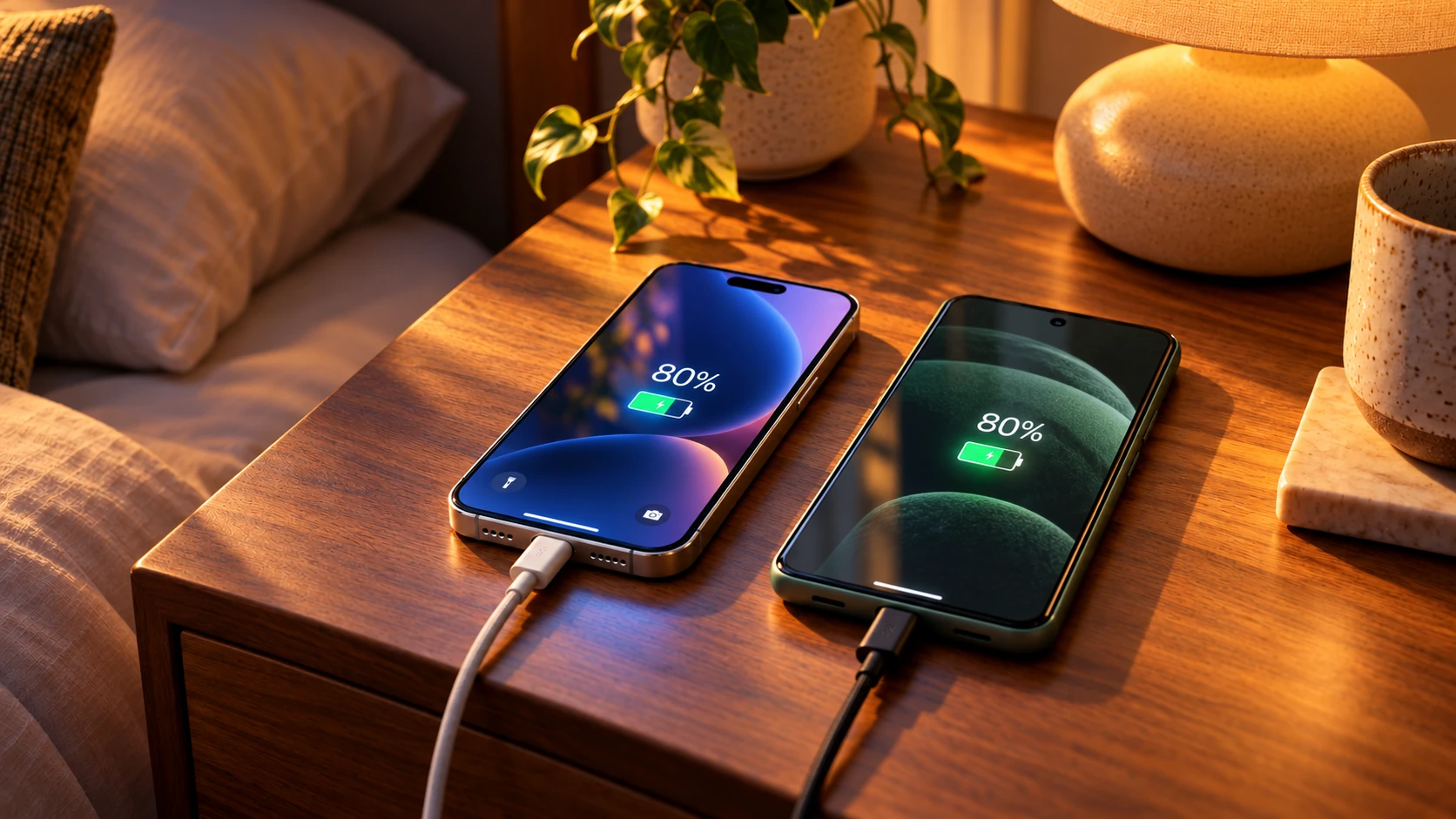
AI-generated conceptual illustration: two generic phones with illustrative 80% screens. Not real product photographs, exact iPhone or Pixel models, or authentic charging settings; no hands-on test is shown.
Image: FindsRadar, with AI image generation / Phone charging at 80% — FindsRadar conceptual illustration. Full-frame AI-generated scene, web-encoded for this article. Devices and screen graphics are conceptual, not evidence of technical specifications, exact-product identity or hands-on testing.