

Google TV Streamer setup checklist: what to check before you buy
Check HDMI, network, power and regional app requirements before replacing a working streaming device.

Maintained by FindsRadar Editorial Team
Before you buy
The Google TV Streamer (4K) deserves a place on your shortlist if you want Google TV and a wired network connection. Before buying, check what your television, favourite apps and existing streamer already do. A new box is useful when it solves a specific problem, not simply because it carries a 4K label.
This is a buying and setup guide based on Google's documentation, not a hands-on review. It covers Google TV Streamer (4K), not the older Chromecast with Google TV.
1. Leave room for a separate box and HDMI cable
Google lists an HDMI 2.1 port on the Streamer, but no HDMI cable in the box. Its setup instructions call for a certified Ultra High Speed HDMI 2.1 cable. Check the cable you already own before adding another to your basket, and measure the route between the Streamer and your television.
The standard package includes a power adapter, a power cable and a Voice Remote with two AAA batteries. Make sure your chosen position has room for the connections as well as access to an outlet.
2. Check the TV's actual capabilities
You need an HDMI-equipped display. Google specifies HDCP 1.3 or later for its streaming devices, rising to HDCP 2.2 for 4K content. For 4K viewing, you also need a 4K display and an internet connection of at least 20 Mbps. HDR requires an HDR-capable display.
Check the television's manual for the particular HDMI input you plan to use. If you route video through a receiver or soundbar, check that equipment too. Buying a streamer does not add 4K pixels or HDR capability to a television that lacks them.
For an older HD television, decide whether better access to apps would justify the purchase. If your goal is better picture quality, first identify what is limiting your current setup.
3. Decide between Wi-Fi and Ethernet
The Streamer supports 2.4 GHz and 5 GHz Wi-Fi and has a built-in Ethernet port rated for gigabit Ethernet. You do not need to buy a Chromecast Ethernet adapter for this model.
Ethernet is worth considering when a router connection is practical and Wi-Fi near the TV is unreliable. It cannot make an inadequate broadband connection faster. Before buying extra networking equipment, check whether your existing streamer also struggles in the same location: the connection may be the real problem.
Google's Streamer setup guide says WPA2-Enterprise networks are unsupported. Check shared-building or workplace network requirements rather than assuming that any Wi-Fi connection will work.
4. Plan power and sign-in before setup
Use the supplied power adapter connected to an outlet, as Google instructs, rather than planning around a TV USB socket. Connect HDMI, select that input on the TV and have your Google Account ready.
Google recommends setup through the Google Home app, but its Streamer-specific guide also documents a TV-and-remote route. Choose “Set up on TV” if you prefer that option. Read the terms and privacy information before accepting them. If the remote does not pair automatically and the TV asks you to start pairing, hold Back and Home until its light pulses.
5. Verify the apps you actually watch
Make a short list of essential services, especially local broadcasters and sports subscriptions. Check each provider's current Google TV support in your country before ordering. Google warns that services and features can depend on the app, device, network and location, and subscriptions may be required.
An imported device is not a promise of another country's viewing experience. Google says the home screen varies with location and language, and using a device outside its purchase country can change the experience.
Once set up, search for an app by name or browse the Apps tab. Installing an available app is separate from having the subscription or account needed to watch it.
When keeping your current streamer makes more sense
Keep your existing device if it reliably runs your services, delivers the formats your TV supports and has controls you like. A slow network, unsupported subscription or television limitation should be diagnosed before replacing hardware.
Consider Google TV Streamer when you can name the benefit you need, such as Google TV access or built-in Ethernet. Before comparing sellers, confirm the exact model, local warranty, plug type and included accessories. That checklist is more useful than buying first and discovering the missing cable later.
Check the matching model
The FindsRadar model notes identify Google TV Streamer (4K). An earlier Amazon India check identified Porcelain, but that listing could not be refreshed during the November 7 review. Current seller, price, availability and regional support are unverified. Use Google’s specifications to check your setup before choosing a seller.
FindsRadar may earn a commission from qualifying purchases through affiliate links. Our Google support links are evidence sources, separate from shopping links.
Explore the exact models
Use these model notes to check compatibility before deciding whether you need new equipment.
These pages link to manufacturer information. They do not verify a current regional shopping offer.
Sources & image credits
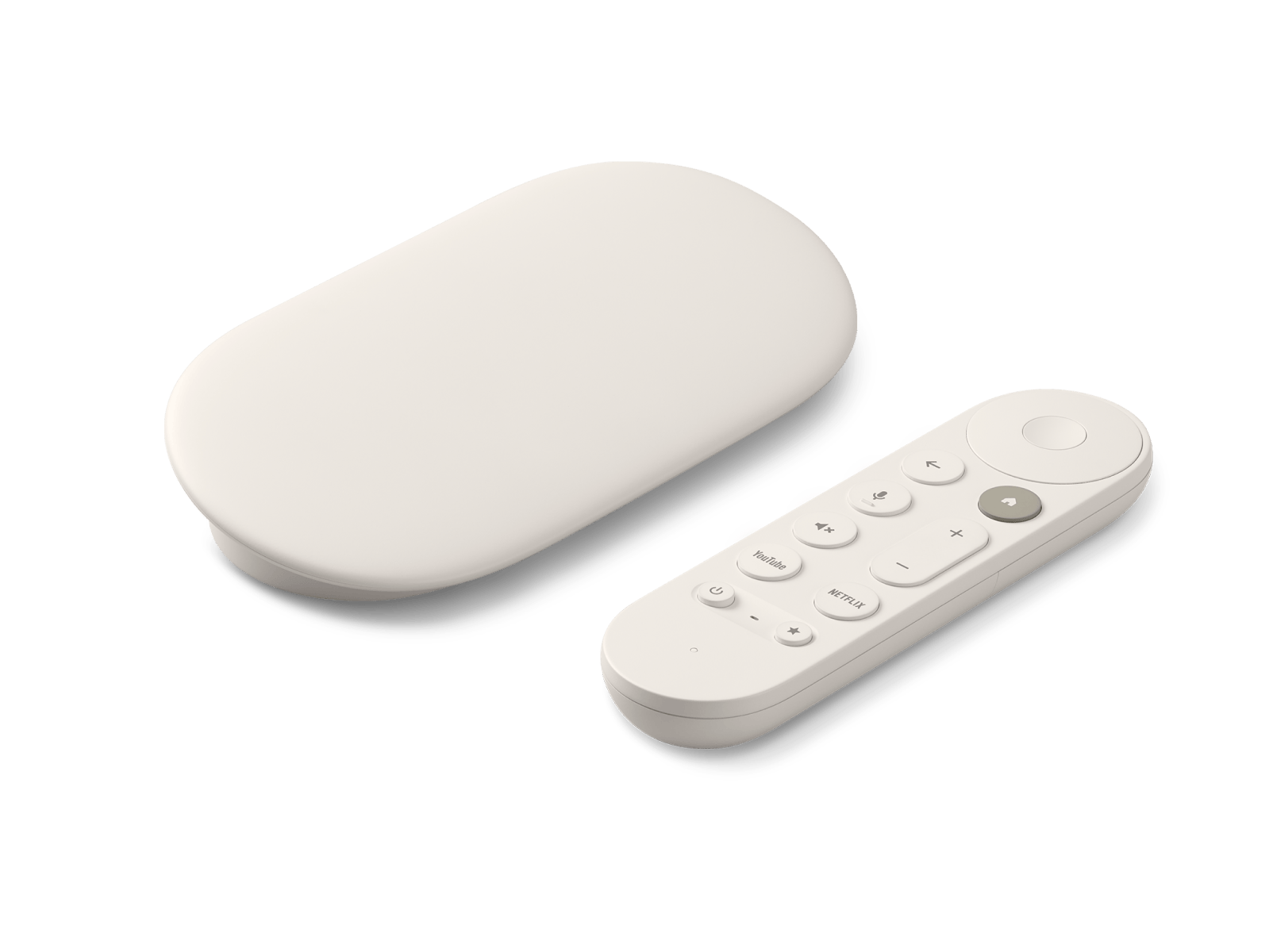
Google product image showing the Porcelain TV Streamer and remote. Check regional package contents separately.
Image: Google / Google TV Streamer product gallery. Product image used for model identification. The image does not verify a retailer offer, selected package or included accessories.